Definition
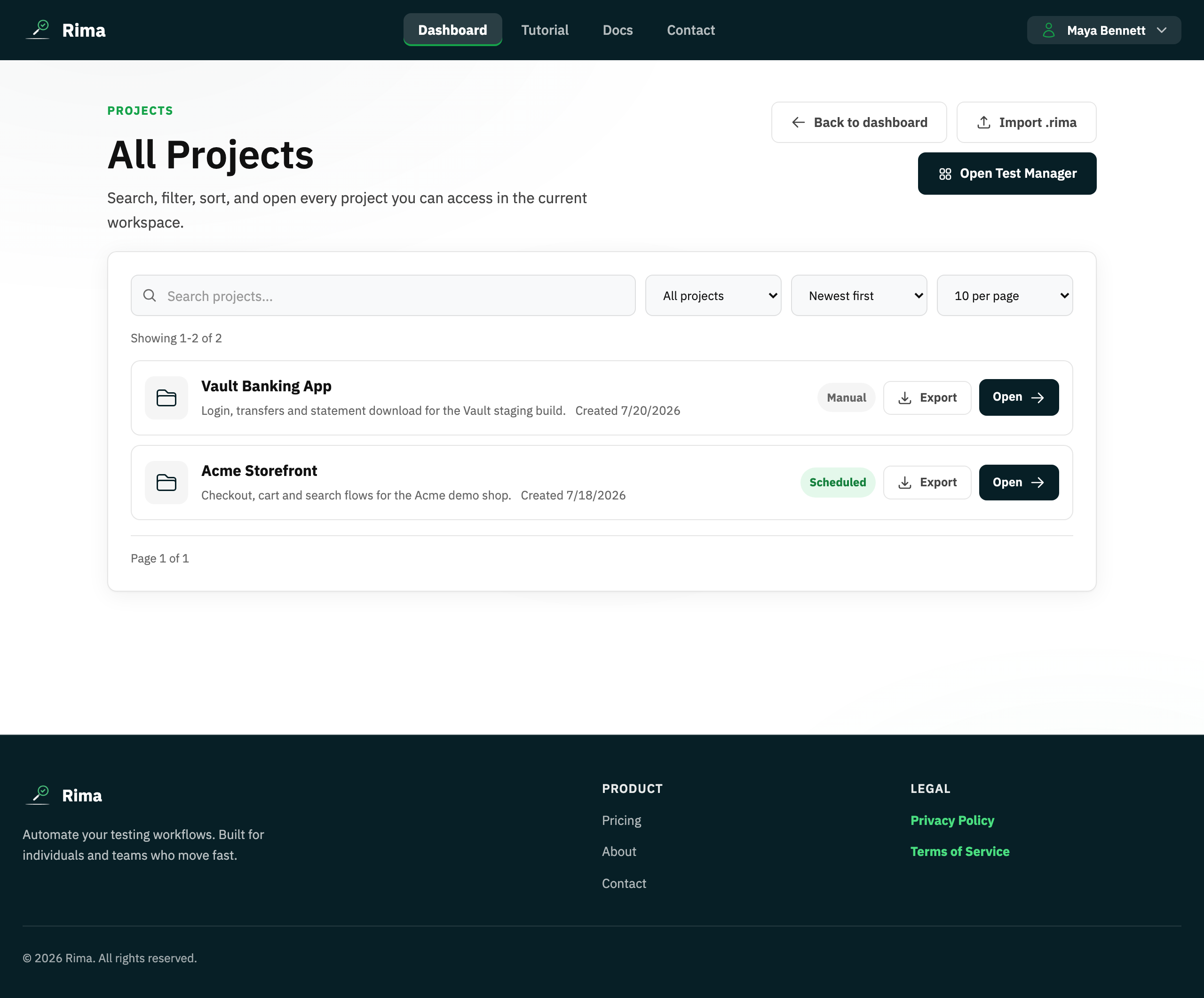
The Projects page (/projects) and the test manager list (/app) are the two full-page views that list every project you can access, with tools to find and open each one.
What it is for
When the dashboard preview is not enough, these pages give you the complete project list with search, filters, sorting, pagination, and import/export.
How it works
- The Projects page lists accessible projects with search, a schedule filter (All, Scheduled, Manual), sorting, page-size selection, and pagination.
- Project cards also offer import and export actions alongside opening the project.
- The test manager at
/appshows the same accessible projects as the entry point to managing each project’s tests. - Clicking a project card or its Open action loads the project detail page.
- From a project, the Tests breadcrumb returns you to the test manager list.
Example
A tester filters the Projects page to Scheduled to review every project running on a cron, opens the “Storefront” project, and later clicks the Tests breadcrumb to jump back to the list.
Common use cases
- Find one project among many by searching its name.
- See which projects run on a schedule versus manually.
- Import or export a project from the list.
- Move between a project’s tests and the full project list.
Where to find it
Open /projects from the navigation or the dashboard’s See all link; open /app for the test manager. The Tests breadcrumb on a project detail page returns to /app.
Limitations, requirements, and permissions
- Both pages show only the current workspace and the projects you have been granted access to.
- Opening a project requires view access to that project; inaccessible or missing projects return unauthorized or not-found behavior.
- Schedule filter options are limited to those in the dropdown, and sort and filter values must be supported by the API.
Related features and guides
Ready to try it yourself?
Create your free account, record your first flow, add a validation, and let Rima run it on a schedule for you.
Start free trial