Start a run
From a project you can run a single test (optionally together with its run-before prerequisites), open the Run tests window to pick and order several enabled tests, or run a saved group. A useful shortcut: any selection you build in the run window can be saved as a group for next time. If a run is taking too long or was started by mistake, you can cancel it while it is active.
The run summary
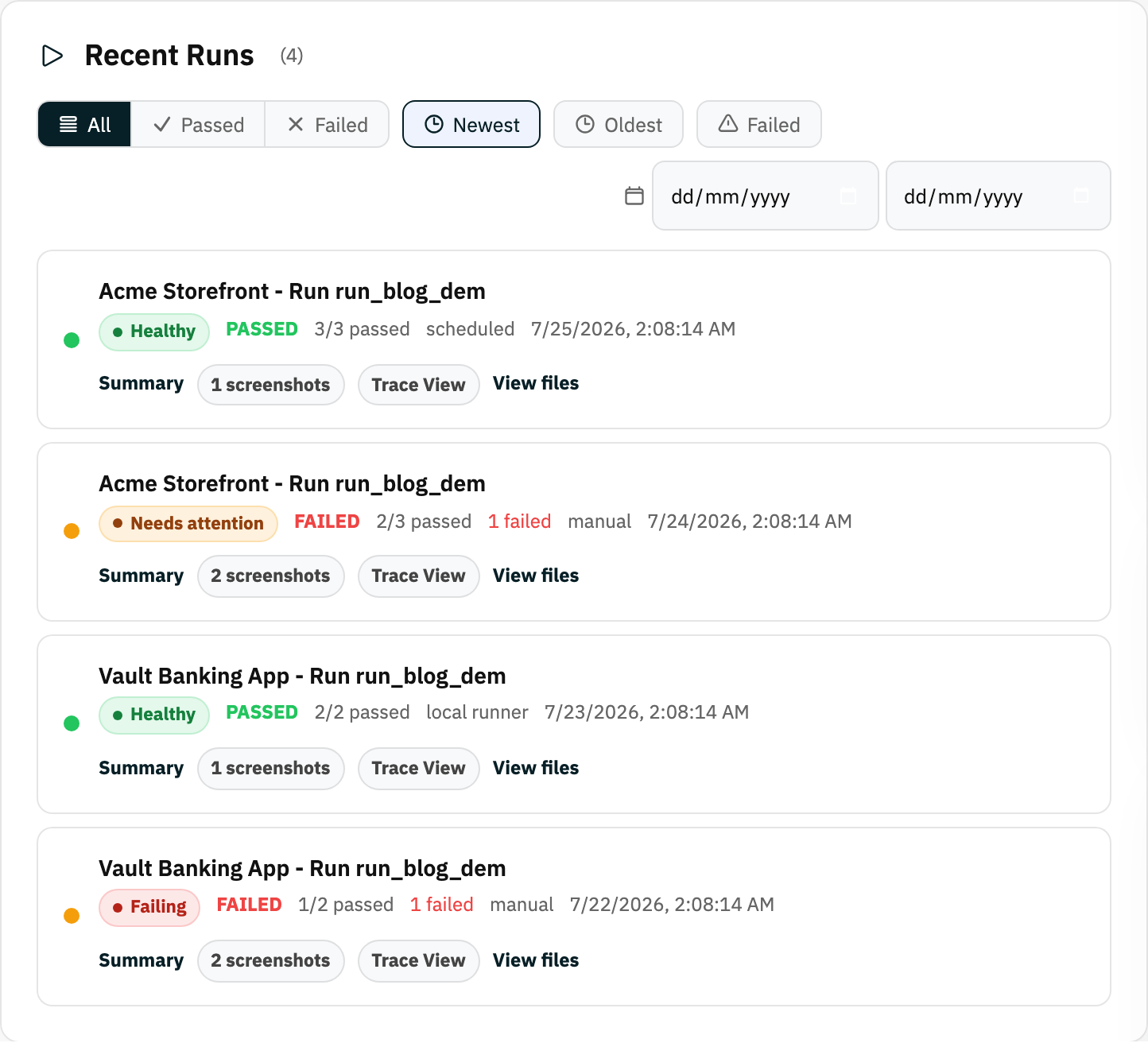
When a run finishes (or fails), open its summary page. It lists each test in the run, whether it passed, how long it took, and which validation failed if something went red. The project page also draws a trend chart of passed and failed counts across recent runs, and run history everywhere supports filtering by status and date, sorting and pagination.
The trace viewer
For a deep look, open the trace of a run. It combines a step-by-step timeline with screenshots, a video of the browser, network requests and console output - enough to answer "what exactly happened?" without re-running anything.
Run files
Every artifact a run produced - screenshots, video, logs - is browsable and downloadable on the run files page.
Share a run with anyone
Click Share on a run to generate a public report link. Anyone with the link can view that run's report - no Rima account needed. Handy for showing a failure to a developer or a green run to a client.
Ready to try it yourself?
Create your free account, record your first flow, add a validation, and let Rima run it on a schedule for you.
Start free trial