Create, import and export projects
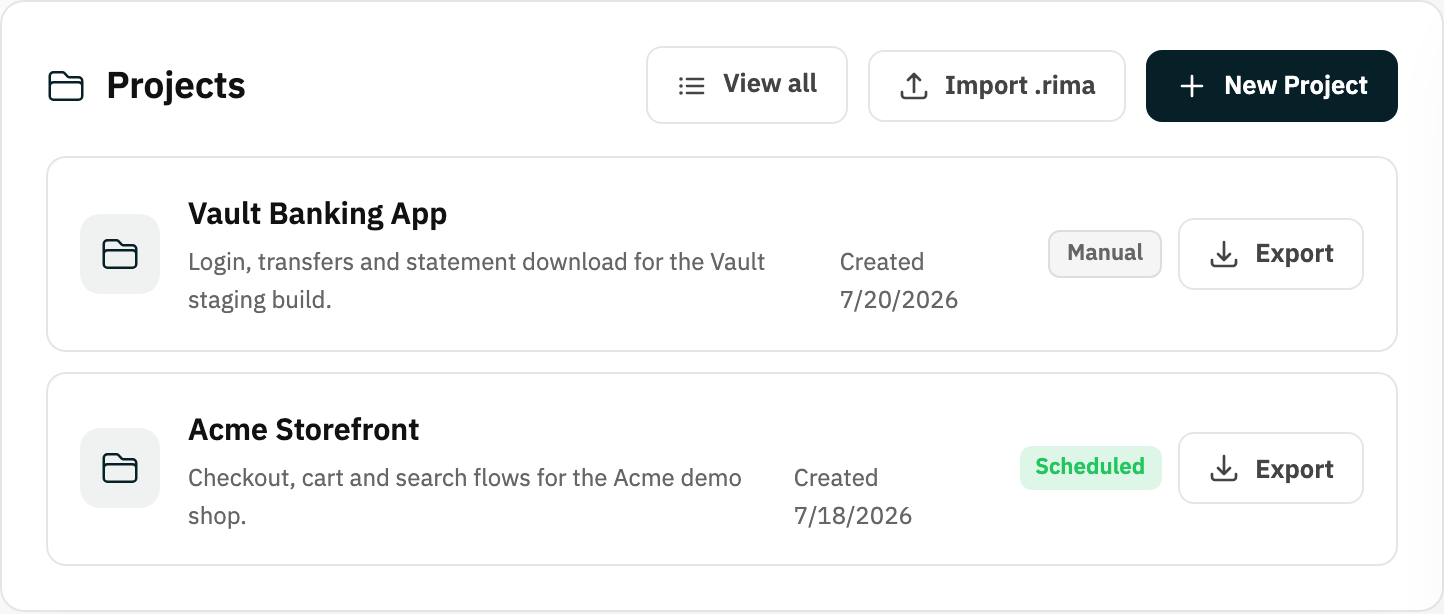
Create a project from the dashboard or the projects page - it just needs a name. You can also export a whole project (tests included) as an encrypted .rima file, and import such a file into another workspace. The projects page lets you search, filter by schedule state, sort, and page through everything you have.
Inside a project
Open a project to reach its detail page. You can rename it inline right in the header, edit its description, and use the breadcrumb to jump back to the test list. Project settings include:
- Execution mode - whether the project's tests share one browser session or each test gets a fresh, separate browser.
- Environments - record on one domain (say, production) and point runs at another (say, staging). One click applies the environment URL to every matching test and URL validation.
- Variables - named values like
USERNAMEyou can create, edit and delete, then reuse in steps and validations across the project.
Manage your tests
The test list supports search, sorting, a per-page size and pagination. For each test you can expand it to view every recorded step, rename it inline, enable or disable it (disabled tests are skipped by runs and schedules), or delete it.
Edit the steps of a test
Each recorded step can be tuned after the fact. A step's value (what gets typed into a field, for example) can be:
- Fixed - always the same value.
- Random once - generate a random value now and keep it.
- Random each run - a fresh value every time the test runs. Generators cover text, numbers, letters-and-numbers, emails (on Rima's test email domain), phone numbers, names, passwords with rules, URLs, street addresses, dates, lorem text and usernames.
- From a variable - use a project variable's value; a step can also write its result back into a variable for later steps.
- From an email - extract a value (like a one-time code) out of an email received during the run.
Insert and remove steps
You can delete any step, or insert new ones after an existing step: a wait, a browser action, a validation, or a click link from email step. You can also give a test run-before dependencies - other tests that must run first (a login test before a checkout test, say).
Test groups
A group is a saved, ordered set of tests - a suite. Create one from the project page or save a run selection as a group, rename and reorder it later, run the whole group with one click (even from the dashboard project card), and delete the group without touching the tests inside it. Groups are also what schedules can point at.
Ready to try it yourself?
Create your free account, record your first flow, add a validation, and let Rima run it on a schedule for you.
Start free trial