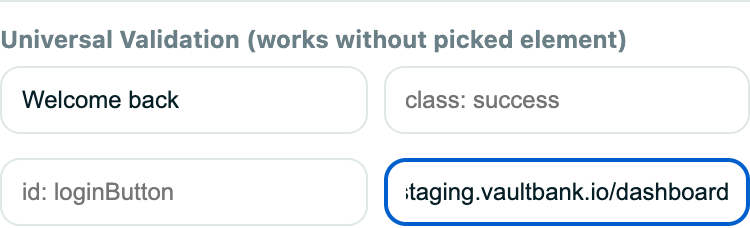
Simple checks
After you stop a recording (and any time you edit a test), you can add validations in Simple mode:
- Text check - the page must show a piece of text, e.g. "Order confirmed".
- URL check - the page address must contain a value, e.g.
/checkout/success.
Pick an element on the page
Click Pick element and then click anything on the page. Rima captures that element and lets you validate its text, CSS class, ID, input value, or whether a checkbox is ticked. A refresh button re-reads the element from the live tab if the page changed.
Advanced mode
Switch from Simple to Advanced to build selector-based validations with several checks that must all pass - useful when one condition is not enough, like "this row exists AND its status cell says Paid".
Email validations
Tests that involve email can check the inbox too. From the test editor you can insert an email received validation (an email must arrive at a generated address) or a click link from email step (Rima reads the email and clicks a matching link, like a verification link). You can even extract a value out of an email - a one-time code, for example - and use it in a later step. Validation text fields also accept ${var:NAME} tokens, so a check can compare against a project variable.
Ready to try it yourself?
Create your free account, record your first flow, add a validation, and let Rima run it on a schedule for you.
Start free trial