Definition
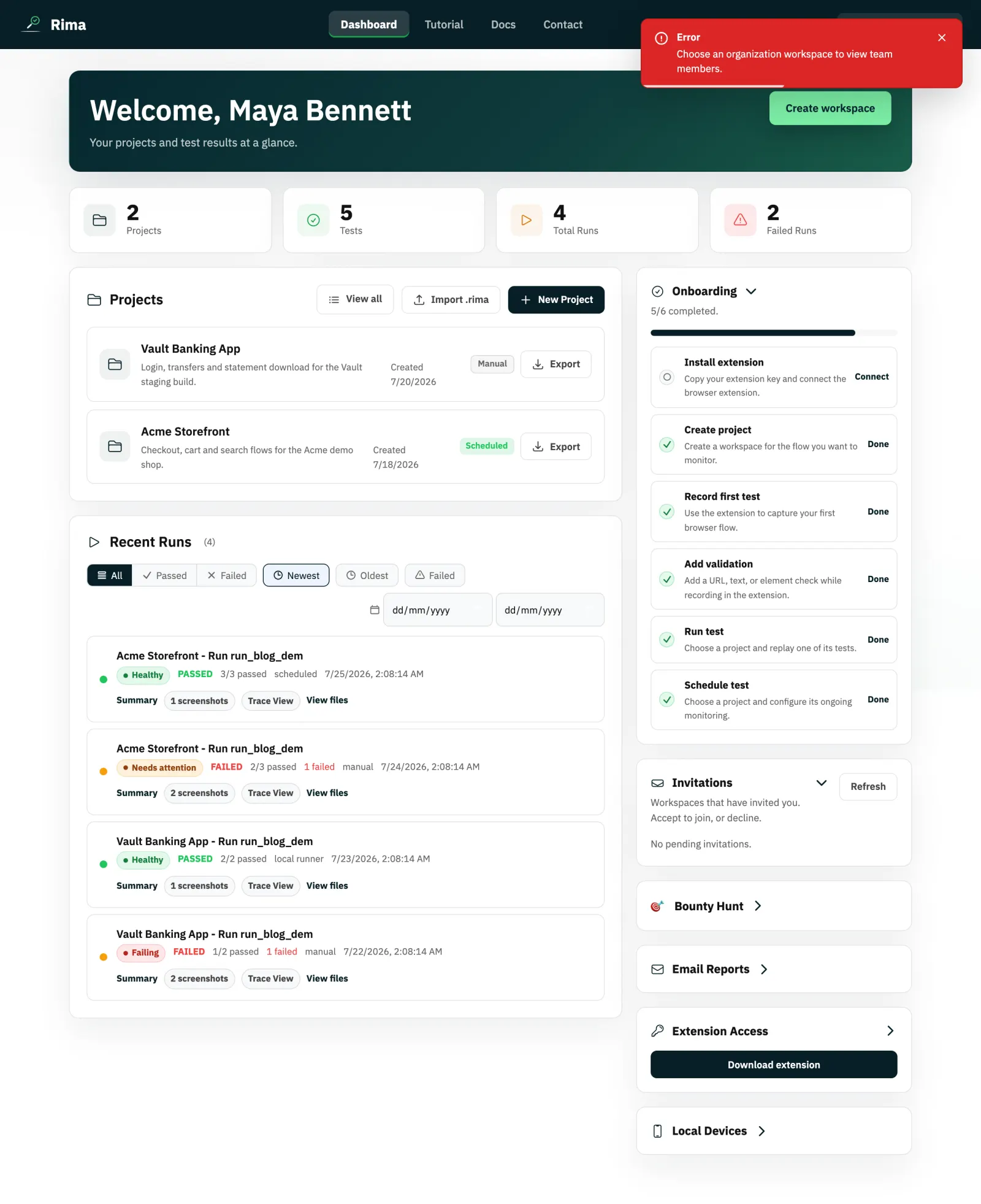
The team members page (/team/members) lists everyone in the workspace with search, filters, sorting, and pagination; the dashboard shows a smaller Team Members preview panel.
What it is for
Use it to see who belongs to the workspace, find a member quickly, check roles and email-notification states, and, as the owner, remove members.
How it works
- The dashboard Team Members panel previews members with a count; click See all to open the full page.
- Search members by typing in the search field.
- Filter by role and by email-notification state (on or off).
- Sort by created date, name, email, role, or email notifications; change the page size and paginate.
- The workspace owner removes a member from the remove-member modal on the organization permissions page; the member loses access to the workspace and its projects.
Example
An owner searches for “dana”, filters to members with email notifications off, confirms Dana’s role, and later removes a contractor whose engagement ended.
Common use cases
- Audit who has access to the workspace.
- Find a member by name or email in a large team.
- Check which members receive email reports.
- Remove a departing teammate.
Where to find it
Open the Team Members panel on the dashboard and click See all, or go to /team/members. Member removal lives in the organization permissions page’s remove-member modal.
Limitations, requirements, and permissions
- The page shows the current workspace only, and an active workspace is required.
- Any workspace member can view, search, filter, and sort the list.
- Only the workspace owner can remove a member, and the owner cannot be removed by that row action.
- Filter options are fixed by the interface.
Related features and guides
Ready to try it yourself?
Create your free account, record your first flow, add a validation, and let Rima run it on a schedule for you.
Start free trial