Definition
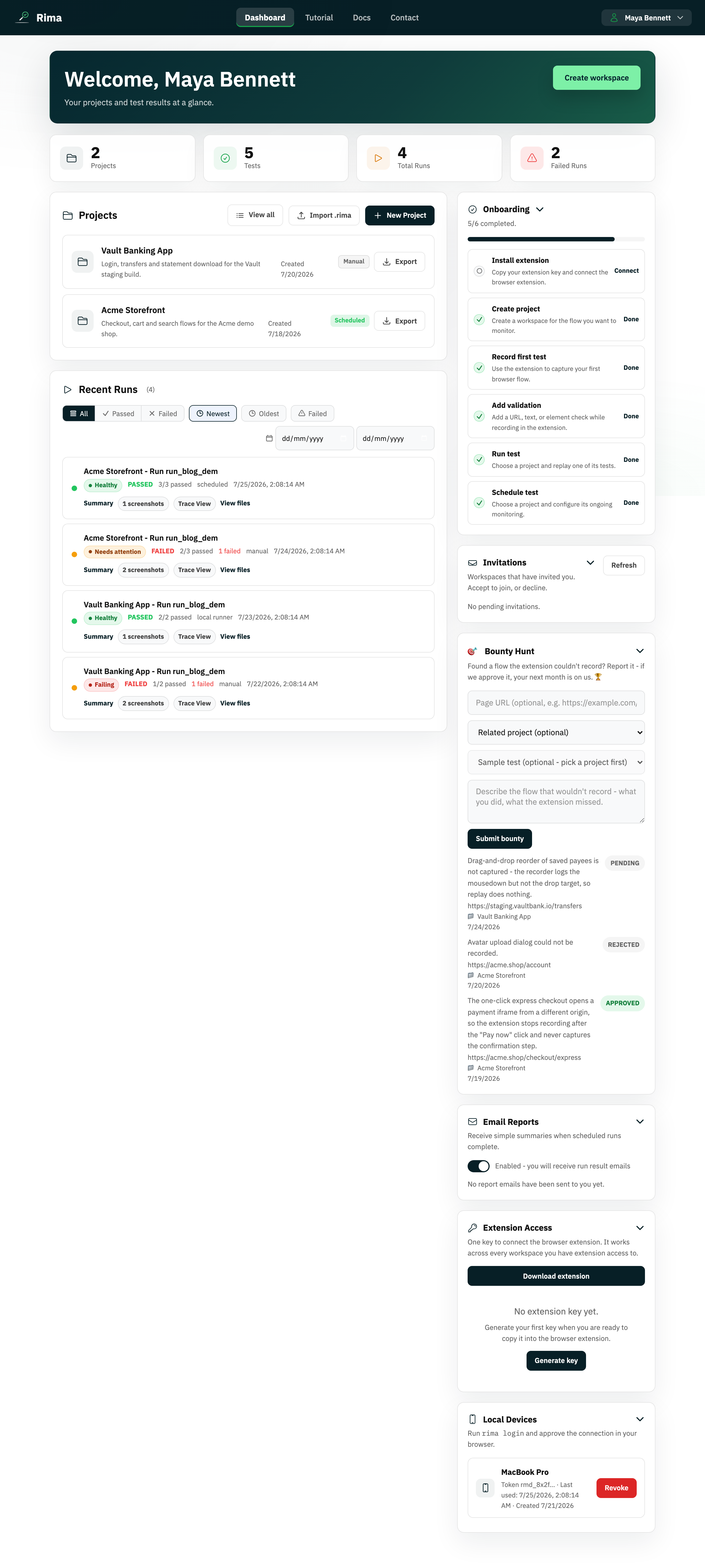
The authenticated navbar is the bar at the top of the app that moves you between the dashboard, content pages, and your account, and the profile menu is the dropdown behind your avatar with account actions.
What it is for
Use the navbar to reach every main area of the app from any page, and the profile menu to open profile settings, create a workspace, or log out.
How it works
- After signing in, the navbar links to the Dashboard, public content pages such as About, Tutorial, and Contact, and, for administrators only, the Admin console.
- The workspace switcher in the navbar changes the active workspace; it has its own reference entry.
- Click the avatar or profile button to open the profile menu, then choose Profile settings, Create workspace, or Logout.
- The menu closes when you click outside it or press Escape.
Example
After a run finishes, a tester clicks Dashboard in the navbar to review recent runs, then opens the profile menu and chooses Profile settings to update their password.
Common use cases
- Jump back to the dashboard from any page.
- Open profile settings to manage your account.
- Create another workspace from the profile menu.
- Log out at the end of a session.
Where to find it
The navbar appears at the top of every authenticated page; the profile menu opens from the avatar or profile button on its right side.
Limitations, requirements, and permissions
- An active session is required; unauthorized routes redirect or deny access.
- The Admin link and admin routes are visible to administrator accounts only.
- Menu contents depend on session state.
Related features and guides
Ready to try it yourself?
Create your free account, record your first flow, add a validation, and let Rima run it on a schedule for you.
Start free trial