Definition
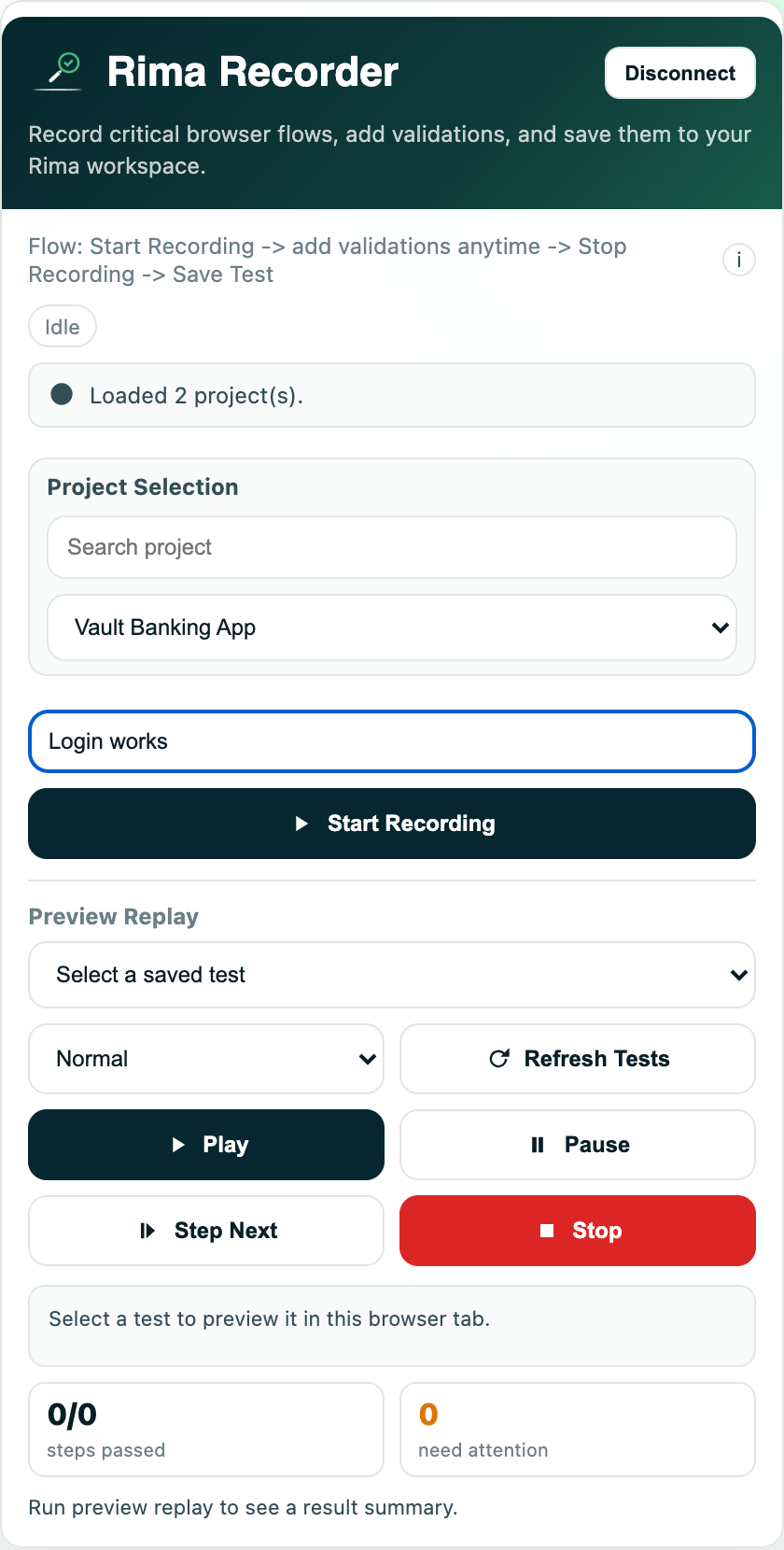
The browser extension is the no-code recorder that watches a flow in a normal browser tab and converts it into a Rima test.
What it is for
It captures realistic user behavior without requiring you to write selectors or automation code by hand.
How it works
- Install the extension, open its side panel, and connect it once with the extension token from your dashboard.
- Pick a project, name the test, then press Start Recording; clicks, typing, selections, navigation, and scrolling in the active tab become steps.
- Stop the recording, add validations in Simple or Advanced mode, then save; the flow uploads to the selected project as a test.
- The same panel offers Preview Replay to play a saved test back in the current tab.
Example
Start recording, create an account on your site, stop recording, add a success validation, and save the flow as “Registration”.
Common use cases
- Create a new test visually.
- Capture a bug reproduction.
- Record form entry and navigation.
- Preview a saved test in the active tab.
Where to find it
Download the extension from the dashboard, open its side panel, connect it with an extension token, and choose a project.
Limitations, requirements, and permissions
- Requires a valid extension token; only one installation can hold a token at a time, so connecting elsewhere asks you to take the token over.
- Cannot record Chrome, extension, or other restricted pages; open the website you want to test first.
- A project and a test name are required before recording; saving over a duplicate name replaces the existing test after confirmation.
- Plans can cap recording length; the recorder stops and saves automatically when the limit is reached.
Related features and guides
Ready to try it yourself?
Create your free account, record your first flow, add a validation, and let Rima run it on a schedule for you.
Start free trial